Build a Personal AI Operating System in Claude, Step by Step
The complete setup: exact prompts and files to build a working personal AI OS in Claude Cowork in under an hour — profile wizard, card-menu command center, skills, always-on guard, and one scheduled routine.
See Claude set up for your job
Skip the theory — pick your profession and get the real workflows, ready-to-use prompts, and exact setup for your work.
TL;DR. This is the hands-on companion to our personal AI operating system explainer — every prompt and file you need to build a working OS in Claude Cowork, in under an hour. You'll create one Project, paste one routing block into its Instructions, install six skill files by copy-paste, run a setup wizard that interviews you through a single form and writes your profile, connect your email so triage reads your real inbox, and schedule one weekly routine. The architecture is the same one we ship in our paid profession products; here you build the personal-scale version yourself, and everything is a file you own.
The concept piece made the argument: four layers — persistent context, reusable skills, scheduled routines, verification — turn scattered AI chats into a system that compounds. This article is the build. It uses the exact architecture from the Real Estate AI Operating System we sell to working agents — setup wizard, profile file, pre-flight reads, card-menu command center, ambient guard — scaled down to one person and stripped of the profession-specific parts. We built this system for real while writing this guide; the screenshots are from that build, not mockups.
What you need: Claude Cowork (any paid Claude plan) on desktop. Total time: under an hour. Code knowledge: none — every file is plain English in a text file.
The architecture you're about to build
Personal AI OS/                    ← one Cowork Project + its folder
├── personal-os-profile.md         ← Layer 1: your context — created BY the wizard, not by hand
├── INSTRUCTIONS.md                ← the router (pasted once into the Project)
└── skills/                        ← Layer 2: your playbooks
    ├── os-setup-wizard.md         ←   interviews you, writes the profile
    ├── os-command-center.md       ←   the home surface (a card menu, not a wall of text)
    ├── meeting-brief.md           ←   work skill
    ├── inbox-triage.md            ←   work skill (connector-first — reads your unread)
    ├── weekly-review.md           ←   work skill → Layer 3 when scheduled
└── privacy-guard.md ← Layer 4: always-on guardFour design rules, inherited from the product version, worth knowing before you build:
- The profile is the system's memory — and the wizard is how it gets made. You don't hand-write your profile; you run a wizard that interviews you through one form and writes the file. Every skill then starts by reading it — that "pre-flight read" is why the tenth week beats the first.
- Skills come in three classes. Work skills produce deliverables (brief, triage, review). Orchestration skills run the system (wizard, command center). Ambient guards apply to everything without being invoked (privacy guard).
- The home surface is visual. Cowork has a visualizer that renders card menus and forms. The command center and wizard are written to use it — a menu of tappable cards feels like a cockpit; a wall of bullet points feels like a chatbot. Same information, very different daily experience.
- Drafts, never actions. The system prepares; you decide. Every outbound draft is marked for your review. This rule is load-bearing — it's what makes the whole thing safe to trust with real work.
Step 1 — Create the Project (2 minutes)
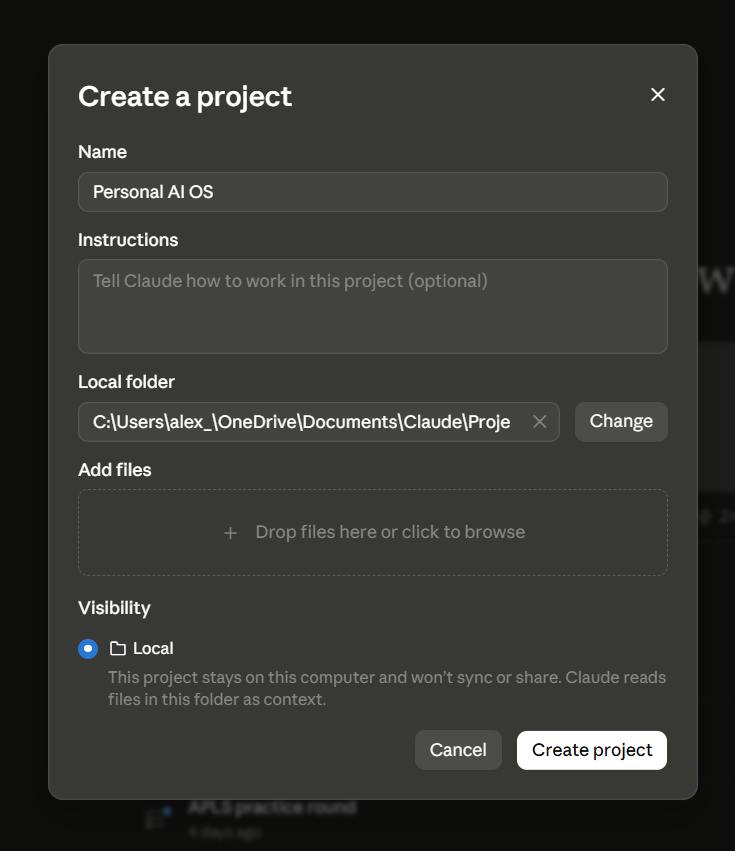
In the Claude desktop app: Projects → Create a project, name it Personal AI OS. The dialog asks for a Local folder — accept the suggested location or point it anywhere you like (ours lives under Documents\Claude\Projects\Personal AI OS). Leave visibility on Local: the dialog's own words — "this project stays on this computer… Claude reads files in this folder as context" — are exactly the property an OS wants.
Step 2 — Paste the router (1 minute)
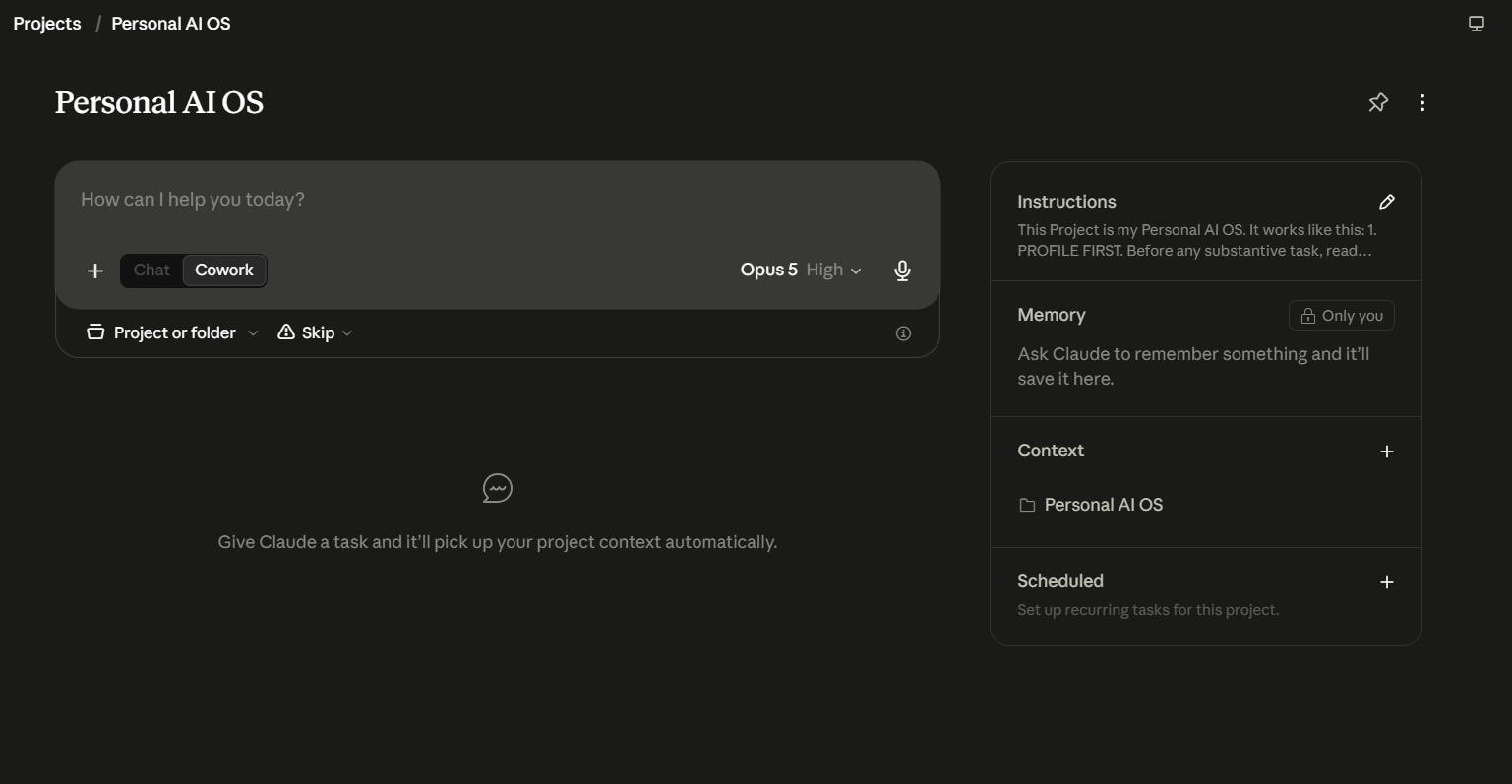
Open the Project's Instructions panel (sidebar) and paste this, exactly:
This Project is my Personal AI OS. It works like this:

1. PROFILE FIRST. Before any substantive task, read personal-os-profile.md
   from this project's folder. It defines who I am, my priorities, my voice,
   and my rules. Its Rules section applies to everything you produce here.

2. SKILLS. The skills/ folder contains my playbooks. When I name one — "run
   inbox triage," "meeting brief," "weekly review," "command center," "setup
   wizard" — read the matching file in skills/ and follow it exactly. If I
   describe a task that clearly matches a skill, suggest it: "I have a skill
   for this — want me to run meeting-brief?"

3. GUARD ALWAYS ON. skills/privacy-guard.md applies to every output from
   every skill, without being asked.

4. DRAFTS, NOT ACTIONS. Everything you produce is a draft for my review. You
   never send, publish, or commit anything on my behalf.

5. WHEN UNSURE, SHOW THE MENU. If I seem lost or ask what you can do, run
skills/os-command-center.md.This block is the entire "operating system kernel": it tells every future conversation in this Project that the files exist, that the profile loads first, and that the guard always applies. It's the one thing that isn't a file in the folder — and the most common cause of "my skills don't work" is skipping this paste.
Step 3 — Install the skills (15 minutes)
Six files. For each: open a task in the Project, paste the prompt, Claude writes the file, move on. (You could also create these by hand in any text editor — they're just Markdown files — but letting Claude write them means it confirms each one landed.)
3a. The setup wizard (orchestration — install first, run in Step 4)
Create a file at skills/os-setup-wizard.md in this project folder with
exactly this content:

---
name: os-setup-wizard
description: Set up or update the Personal AI OS — collect my profile through a single form, then write the profile file every other skill reads. Triggers on "set up my OS," "run the setup wizard," "update my profile."
---

You are the setup wizard for this Personal AI OS. The profile file you write
is the system's single source of truth — every other skill pre-flight-reads
it.

## Step 0 — Handle re-runs, and prove the folder is writable

Read ./personal-os-profile.md.

- **Marker says complete:** ask — "You set this up on [date]. (a) Update —
  keep your answers, walk through what's changed; (b) Start fresh; (c)
  Cancel."
- **Marker says in-progress:** ask — "A previous setup was interrupted.
  (a) Resume; (b) Start fresh."
- **File missing:** write a stub first:

  # Personal AI OS — Profile
  <!-- wizard-status: in-progress -->
  Setup in progress.

  If the write FAILS, stop and say: "This OS needs to run inside a Claude
  Project with a connected folder so your profile can be saved. Create a
  Project first, open a task inside it, and re-run me." Do not continue.

## Step 1 — Choose depth (cards, then proceed on my answer)

**Use the visualize tool** (read_me then show_widget) to present two
**cards** — **Quick start (~2 min)** and **Full setup (~10 min)**. Cowork
note: a card click stages the choice in the composer and I press enter —
proceed the moment my choice arrives, tapped or typed. Do NOT use
AskUserQuestion. Always also state the choice in text so I can just type
"Quick" or "Full." If the visualize tool is unavailable, plain text is fine:

> (a) **Quick start** — 5 questions, ~2 minutes. Every skill works
> immediately; refine anytime by re-running me.
> (b) **Full setup** — ~10 minutes. Adds real writing samples and working
> preferences for noticeably better drafts from day one.

## Step 2 — Collect the profile

**Preferred path:** use the visualize tool's elicitation module — read_me
with modules: ["elicitation"], then show_widget with a SINGLE form
containing every field for the chosen depth. One form, one submit — not a
ten-message back-and-forth.

**Fallback path** (visualize unavailable or errors): batch the questions in
1-2 grouped messages. Same fields, same output — only the input mechanism
differs. Never ask one question per turn.

**Quick start fields:**
- Name (free text, required)
- What you do — role + one line on what the work actually is (free text,
  required)
- Your 3-5 current priorities (multi-line, required)
- How you write — 3 adjectives, or paste one real email (multi-line)
- Email signoff (free text)

**Full setup — everything above, plus:**
- Paste 2-3 real writing samples — emails, posts, reports (multi-line).
  Field copy: "I'll infer your voice from real samples instead of making
  you describe it in the abstract."
- Recurring commitments — weekly meetings, deadlines, publishing cadence
  (multi-line)
- Team or solo (pills: Solo, Small team, Team lead)
- How to present options (pills: Recommendation first, Full menu, Depends)
- Hard rules I should always follow — things to never do, topics to always
  flag, confidentiality boundaries (multi-line)

If a field is left blank, mark it [not provided] and move on — I can re-run
you anytime.

## Step 3 — Infer voice from samples

If writing samples were provided, reflect the voice back in 3-4 bullets —
sentence length, formality, distinctive habits, what to avoid — and ask:
"Here's the voice I'm hearing — accurate?" Take corrections as ground
truth. No samples → use the adjectives and skip this.

## Step 4 — Write the profile

OVERWRITE ./personal-os-profile.md:

  # Personal AI OS — Profile
  <!-- wizard-status: {complete|minimal} -->
  <!-- wizard-completed: <ISO-8601 timestamp> -->

(minimal for Quick start, complete for Full.) Then these sections, in
order: "## Profile", "## Current priorities" (with a "Last updated:" line,
today's date), "## My voice" (captured + inferred cues), "## Working
preferences", "## Rules". Quick-start sections without data contain
literally: "(not yet provided — re-run the setup wizard and choose Full
setup to add)".

The "## Rules" section must always include, adapted to my answers:
- NEVER invent statistics, prices, quotes, or facts — write
  "[needs verification]" instead of guessing.
- Everything produced is a DRAFT for my review; outbound drafts are marked
  "DRAFT — REVIEW BEFORE SENDING."
- Never fabricate commitments on my behalf.
- Surface decisions that need me instead of burying them; when in doubt,
  the "needs me" pile.
- [any hard rules I gave, verbatim]

## Step 5 — Send-off

Confirm in two lines — no wall of text, nothing to paste: "You're set up as
[name] · [role]. Your profile is saved in this project and every skill
loads it automatically — open it from the sidebar anytime to view or
tweak."

Then read ./skills/os-command-center.md and render its Step 1 EXACTLY — the
wizard always ends on the command center, so setup finishes on a menu of
what the OS can do, never a dead end.Three product patterns hiding in this file, all stolen from our shipped OS: the stub-write test (Step 0 writes a placeholder before interviewing you — if the write fails, you're not in a Project with a folder, and the wizard says so instead of collecting ten answers it can't save); the single-form interview (the visualizer's elicitation module renders every question as one form with one submit — the difference between "filling in a card" and "being interrogated one message at a time"); and the ends-on-the-menu rule (setup never finishes at a dead end — it lands you on the command center).
3b. The command center (orchestration — the home surface)
Create a file at skills/os-command-center.md in this project folder with
exactly this content:

---
name: os-command-center
description: The home surface of my Personal AI OS — loads my profile and presents my skills as selectable cards (via the visualizer), then runs the one I pick. Triggers on "command center," "what can you do," "what should I work on," "menu," "start over."
---

> This is the OS **home surface**. It drafts nothing itself — it loads my
> context, shows my skills as cards, and hands off to the one I choose. The
> setup wizard's send-off renders this EXACT layout — keep the two
> identical. "Command center" / "start over" is also my escape hatch from
> any stuck flow: abandon what was in progress and re-render this cleanly.

## Pre-flight — Load the profile

Read ./personal-os-profile.md.
- **If present:** parse name, priorities (and their "Last updated" date),
  voice, and rules.
- **If absent or in-progress:** don't show the command center. Say: "Let's
  get you set up first — it takes about two minutes. Say 'run the setup
  wizard.'" Then stop.

## Step 1 — Render the command center (FIXED layout — the SAME way every time)

**Use the visualize tool** (read_me then show_widget) to render the menu as
a clean, scannable **card menu**. **Cowork note (don't over-promise):**
clicking a card does NOT auto-run — a click stages the choice in the
composer and I press enter. So give every card a **short, ready-to-send
label** that doubles as the command, and when my choice arrives — tapped-
and-entered or typed — **immediately run the mapped skill.** Do NOT use
AskUserQuestion for this menu. If the visualize tool is unavailable or
errors, render the same structure as clean markdown instead — same
sections, same labels.

**Header (fixed wording):** Command center — [Name] · [today's date], then
one status line: if priorities were updated within 30 days, e.g.
"Priorities current (updated [date])"; otherwise "Priorities last updated
[date] — worth a refresh in your next weekly review."

**Section "Daily"** — both cards, this order, these labels:
1. **Triage my inbox** — reads your unread through your connected email;
   needs-you / drafted-reply / park / ignore, replies in your voice.
2. **Brief me for a meeting** — invite, agenda, or thread → context, the
   decision at stake, your likely position, questions to ask.

**Section "Weekly"** — one card:
3. **Run my weekly review** — wins, open loops, next week's top three, and
   proposed priority updates. *(If today is Thursday or Friday, add the
   subtitle "fits today" — cosmetic only.)*

**Section "Setup & more"** — always, this order:
- **Update my profile** — re-run the setup wizard for voice, priorities,
  or rules.
- **Add a skill** — turn a task you repeat into a new card on this menu.

One closing line, every time: "Everything I produce is a draft for your
review — the privacy guard applies to all of it."

## Step 2 — Run what I pick

When I select a card (or type anything matching one), run the mapped skill
immediately — actually read and execute the file, don't describe it:
- *Triage my inbox* → ./skills/inbox-triage.md
- *Brief me for a meeting* → ./skills/meeting-brief.md
- *Run my weekly review* → ./skills/weekly-review.md
- *Update my profile* → ./skills/os-setup-wizard.md
- *Add a skill* → interview me briefly (task, inputs, output format, hard
  rules), then write ./skills/<kebab-name>.md matching the structure of
  ./skills/meeting-brief.md, and confirm it now appears on this menu.

## Step 3 — Return home

After a skill finishes, ask "What's next?" and re-render the SAME fixed
command center. This menu is the loop I operate from — one task, review,
next task.The design decision doing the most work here is the fixed layout: same cards, same order, same labels, every single time. The temptation is to let the AI "helpfully" reorder or trim the menu — resist it. A home surface you can navigate without reading is worth more than a clever one. (Our product version allows exactly one adaptive element — a cosmetic "Suggested" tag — and nothing else moves.) The card labels are deliberately phrased as commands ("Triage my inbox") because in Cowork today, tapping a card stages the text in the composer for you to press enter — so the label is the command.
3c. Meeting brief (work skill)
Create a file at skills/meeting-brief.md in this project folder with exactly
this content:

---
name: meeting-brief
description: Turn a meeting invite, agenda, or email thread into a one-page brief — context, the decision at stake, my likely position, and the questions I should ask
---

Run when I say "meeting brief," "prep me for [meeting]," or paste an invite
or thread and ask to get ready for it.

## Pre-flight
1. Read ./personal-os-profile.md — load my role, priorities, voice, and
   rules. If it's missing, tell me to run the setup wizard first and stop.
2. Read the meeting material I gave you (invite, agenda, thread, prior notes
   in this project folder). If I named a meeting but gave no material, ask
   for whatever exists — don't invent context.

## Produce the brief

One page, these sections, in this order:

**The one-liner** — what this meeting is actually about, in one sentence.

**Context** — 3-5 bullets of relevant history from the material provided.
Only from the material: no invented backstory.

**The decision at stake** — what will or should get decided. If nothing,
say "status/information only" and suggest whether I need to attend at all.

**Where I likely stand** — infer from my priorities in the profile; state it
as "based on your current priorities, you likely want X because Y" and mark
it clearly as inference for me to confirm.

**Questions worth asking** — 3-5, sharpest first. Include the one question
that's awkward but load-bearing, labeled as such.

**Prep gaps** — anything I should have in hand and don't. Mark each "[needs
verification]" or "[you have this somewhere — attach it]".

## Boundaries
- Never fabricate attendees' views, quotes, or history.
- If the material includes other people's personal or sensitive information,
  handle per ./skills/privacy-guard.md.
- End with: "Anything to adjust before I turn this into talking points or a
pre-read reply draft?"This file is the template for every work skill you'll ever add. The anatomy: trigger (when to run) → pre-flight (read the profile, gather real inputs) → output spec (sections, in order, with rules per section) → boundaries (what never happens). Steal this shape for everything.
3d. Inbox triage (work skill — connector-first)
A design note before the file, because we got this wrong in our first build and fixed it: the naive version of this skill says "paste your emails." Nobody pastes their inbox — copying twenty messages into a chat costs more time than the triage saves. The skill below uses the pattern our profession products use instead: check capabilities, don't assume — if an email connector is available, read the unread directly; if not, help the user connect one, and accept pasting only for a couple of specific messages. A skill's first job is to be cheaper than doing the task by hand.
Create a file at skills/inbox-triage.md in this project folder with exactly
this content:

---
name: inbox-triage
description: Read my unread email through the connected email tool and triage it — needs me, reply drafted, park, ignore — with replies drafted in my voice. Paste mode only as fallback for a few specific messages.
---

Run when I say "triage my inbox," "what's in my email," or "sort this."

## Pre-flight
1. Read ./personal-os-profile.md — load priorities (they define "matters"),
   voice, signoff, and rules.
2. **Check capabilities, don't assume tool names.** Look for a connected
   email tool (Gmail, Outlook, or any mail connector available in this
   session).
   - **Connected:** pull my unread messages from the last 24 hours (or the
     window I named) and triage them. This is the primary mode — I should
     never have to paste my inbox.
   - **Not connected:** say so in one line and offer both paths:
     (a) "Connect your email in Settings → Connectors and re-run me — that's
     what makes this skill worth using daily." (b) "Or paste the 2-3
     messages you're unsure about and I'll triage just those." Do NOT ask me
     to paste an entire inbox — that costs more time than it saves.

## Triage

Sort every message into exactly one bucket:

| Bucket | Meaning |
|---|---|
| **Needs me** | A real decision or relationship moment only I can handle |
| **Reply drafted** | Routine — the reply is drafted below, ready for review |
| **Park** | Legitimate but not now — resurfacing suggestion included |
| **Ignore** | Noise — one line on why it's safe to skip |

Present the table first (sender · subject · bucket · one-line reason),
ordered: Needs me → Reply drafted → Park → Ignore. If the connector
returned more than ~25 messages, triage all of them but show only Needs me
and Reply drafted in full; collapse Park and Ignore to counts with a
one-line summary each.

## Drafts

For each "Reply drafted" item: the reply in my voice from the profile, with
my signoff, marked DRAFT — REVIEW BEFORE SENDING. If the email connector
supports creating drafts, save each one as a draft in my mailbox and say so
— but NEVER send. If it doesn't, show the drafts inline for me to copy.
Short is better; match the sender's formality but never exceed it.

For each "Needs me" item: no draft — instead give me the 2-3 sentence
context I need and, if a decision, the options with your one-line
recommendation.

## Boundaries
- You never send anything, and never imply you did. Draft creation is the
  ceiling.
- Commitments (dates, promises, prices) in drafts must come from the
  thread, my input, or the profile — otherwise "[needs verification]".
- Sensitive content: apply ./skills/privacy-guard.md.3e. Weekly review (work skill — and your future scheduled routine)
Create a file at skills/weekly-review.md in this project folder with exactly
this content:

---
name: weekly-review
description: Friday wrap-up — wins, open loops, next week's top three, and proposed updates to my priorities so the profile stays current
---

Run when I say "weekly review," "wrap up my week," or on a schedule (this is
the skill designed to be a recurring scheduled task).

## Pre-flight
1. Read ./personal-os-profile.md — especially "## Current priorities" and
   its "Last updated" date.
2. Read anything else in this project folder that changed this week (notes,
   briefs, triage outputs) — that's the raw material. If the folder is thin,
   ask me for a 5-line brain dump of the week instead.

## Produce the review

**Wins** — 3-5, concrete, one line each. Pulled from the material, not
invented; if you can't find three, say so and ask.

**Open loops** — commitments made but not closed, decisions deferred,
replies owed. Each with: what closing it takes, and whether it's a 5-minute
task or a real block of time.

**Against priorities** — one line per current priority: moved / stalled /
untouched, judged only from the week's material.

**Next week's top three** — your recommendation, sharpest first, each tied
to a priority. Flag anything urgent-but-not-important as exactly that.

**Profile updates (proposed)** — if priorities visibly shifted this week,
propose the edited "## Current priorities" section (with today's date on the
"Last updated" line) and ask: "Want me to save this to your profile?" Only
write to ./personal-os-profile.md after I say yes.

## Boundaries
- This is reflection support, not performance review. No scores, no guilt
  framing — plain observations.
- If the week's material contains sensitive items, apply
  ./skills/privacy-guard.md.
- If run as a scheduled task: work only with files in this project
  (scheduled runs can't see local-only folders), and open with one line
  noting any material you could NOT access so I know the review's blind
spots.The quiet superpower here is the "Profile updates (proposed)" section: the weekly review is what keeps Layer 1 from going stale, because updating your priorities becomes part of the routine instead of a chore you forget. Note it proposes the edit and waits for your yes — even the system's self-maintenance obeys the drafts-not-actions rule.
3f. The privacy guard (ambient — the one that runs without being asked)
Create a file at skills/privacy-guard.md in this project folder with exactly
this content:

---
name: privacy-guard
description: Always-on guard — applies to every skill's output; protects other people's information and keeps drafts from leaking anything sensitive
---

This skill is never invoked directly. Every other skill applies it to its
output before showing me anything. It is the OS's ambient safety layer.

## Rules

1. **Other people's information stays contextual.** Names, emails, and
   personal details from my input may be used to do the task (a reply needs
   the recipient's name) but never repeated into unrelated outputs,
   summaries destined for third parties, or examples.
2. **Outbound ≠ internal.** Anything drafted for an external audience gets a
   final pass: no internal notes, no candor about third parties, no numbers
   I haven't verified, no confidential context leaking through. When an
   internal detail is load-bearing for the draft, replace it with
   "[internal — I decide what to share]".
3. **Sensitive categories get flagged, not processed silently.** Health,
   finances of named individuals, legal disputes, anything about my
   employer: if it appears in input, note "contains sensitive material —
   handle with care" at the top of the output and keep such details out of
   any draft unless I explicitly put them there.
4. **Credentials never propagate.** If input accidentally contains
   passwords, API keys, or account numbers, don't repeat them in any output
   — refer to them as "[credential — not repeated]" and tell me where I
   pasted it.
5. **When a rule here conflicts with getting the task done, the rule wins**
   and the output says which rule fired, in one line, so I can override
deliberately if I choose.This is the skill class most home-built systems skip and most professional systems can't ship without. In our real estate product, the equivalent guards enforce fair-housing language and wire-fraud warnings on every output; your personal version enforces the boundary between what the AI sees and what leaves your desk. Rule 5 is the design insight worth copying anywhere: guards beat tasks, visibly — a guard that silently degrades output teaches you to distrust the system; one that says "rule 3 fired" teaches you to trust it.
Step 4 — Run the wizard (5-10 minutes)
New task, type: "run the setup wizard."
You'll get two cards — Quick start or Full setup — then a single form for your answers.
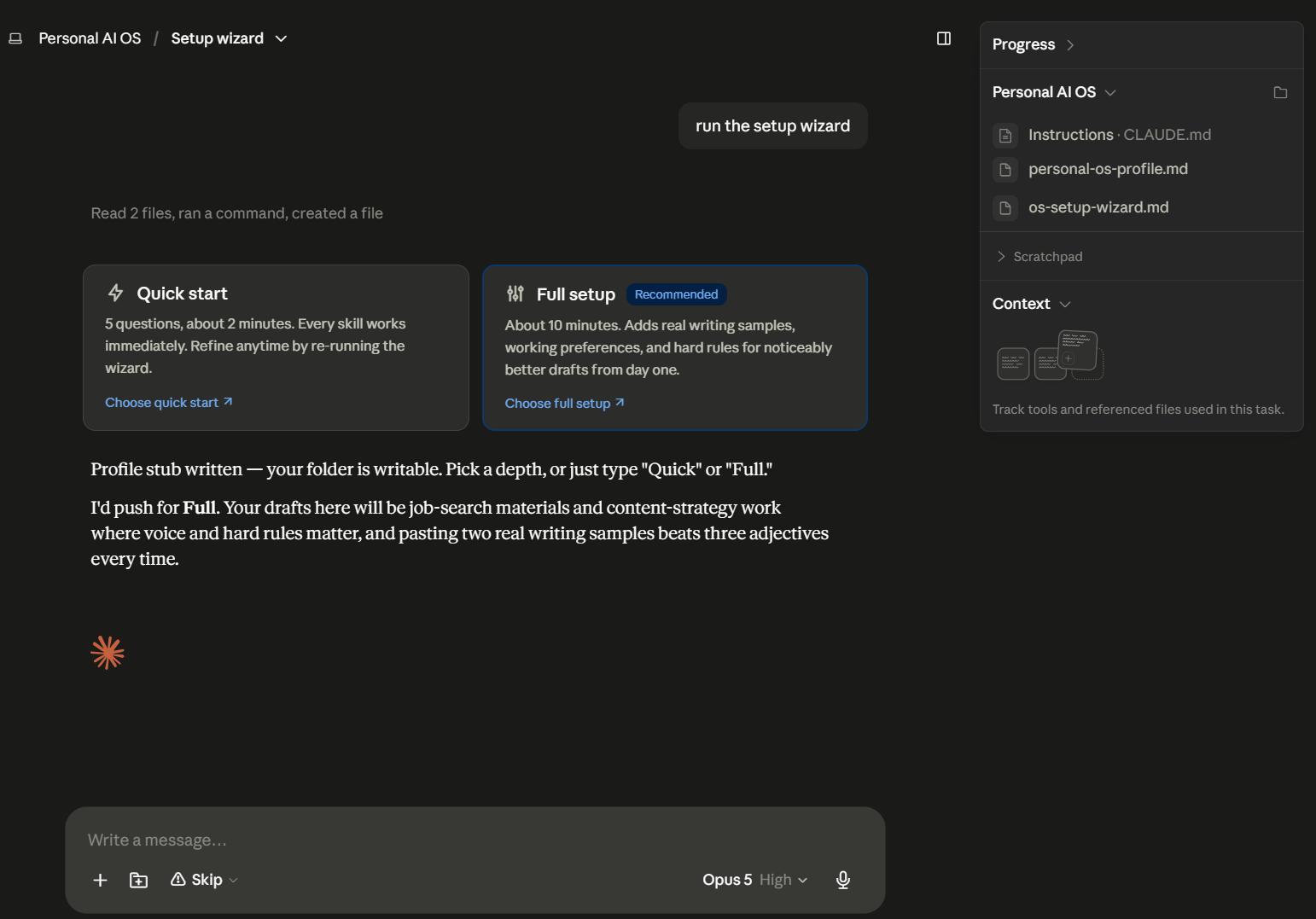 (Tap a card and press enter; in Cowork today a card click stages the choice rather than auto-running, which is why every card in this system is labeled as a ready-to-send command.) Two pieces of advice from watching people do this: choose Full and paste a real email instead of describing your voice — Claude infers voice from evidence far better than from adjectives, and it will read the voice back to you for correction before saving; and keep priorities to five or fewer — a priorities list with nine items is a to-do list, and the system will weigh everything equally, which is the same as weighing nothing.
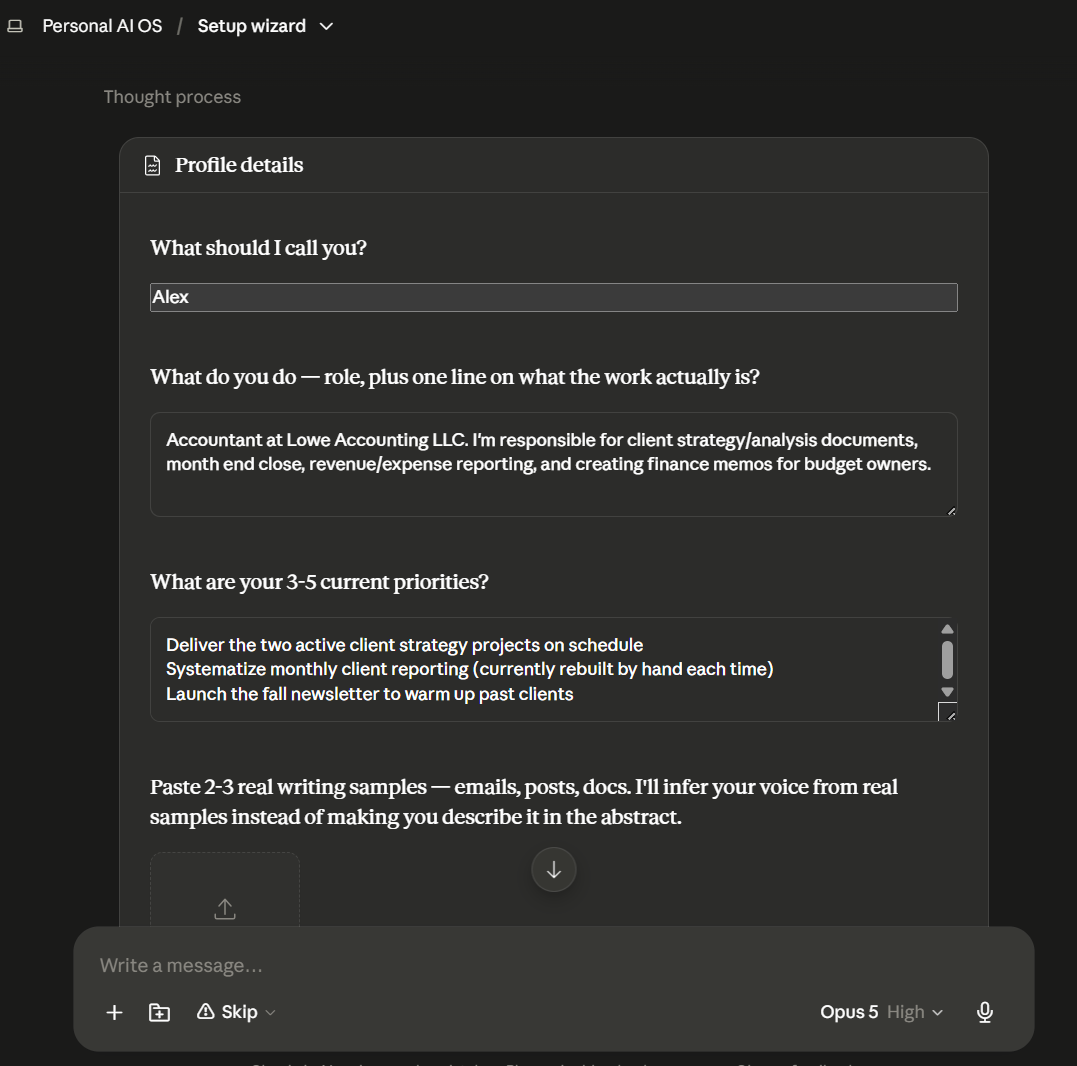
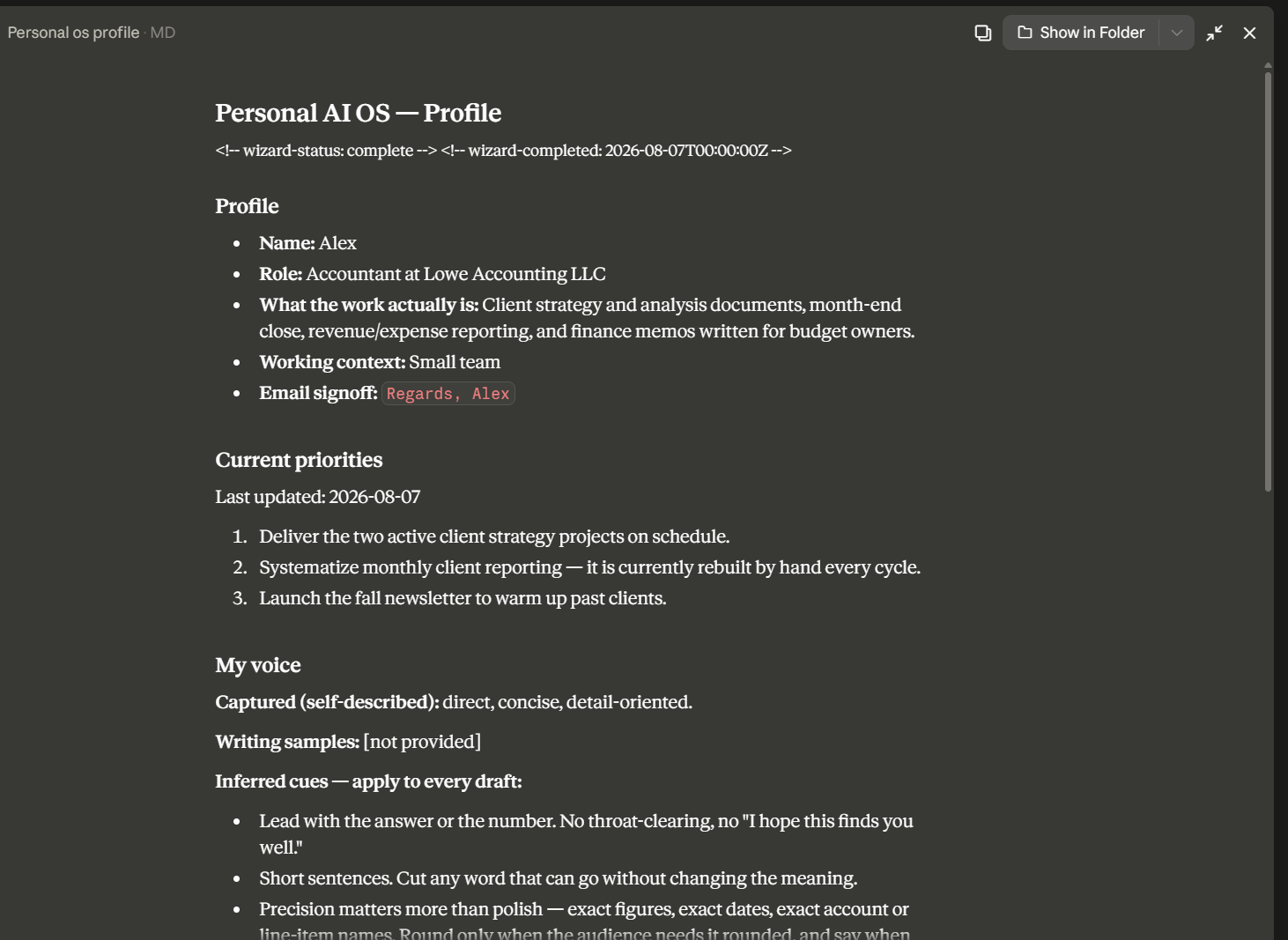
The wizard writes personal-os-profile.md into your project folder and finishes by rendering the command center. Here's the shape of what it writes — an illustrative example (the persona is fictional; your wizard run produces yours):
# Personal AI OS — Profile
<!-- wizard-status: complete -->

## Profile
- Name: Sam Rivera
- Role: Independent marketing consultant — solo practice, B2B clients,
  mix of strategy projects and monthly retainers

## Current priorities
- Last updated: 2026-08-07
- Deliver the two active client strategy projects on schedule
- Systematize monthly client reporting (currently rebuilt by hand each time)
- Launch the fall newsletter to warm up past clients

## My voice
- Tone: plain English, direct, warm but not gushing; no hype words
- Email signoff: "Best, Sam"

## Rules
- NEVER invent statistics, client results, or campaign numbers —
  "[needs verification]" instead
- Everything is a DRAFT for my review; outbound drafts marked
  "DRAFT — REVIEW BEFORE SENDING"
- Client names and budgets never appear in anything drafted for one
  client about another
- Surface decisions that need me; handle or park everything elseYour profile is a file you own — open it from the sidebar anytime, edit a line, and every skill picks up the change on its next run.
Step 5 — Connect your email (5 minutes, and worth it)
The triage skill is only as good as its access. In the Claude app, open Settings → Connectors and connect your email (Gmail or Outlook — and while you're there, Calendar makes future skills better too). Grant read access; if draft-creation is offered, allow it — the skill saves replies as drafts in your mailbox but is written to never send.
If you skip this step, everything still works — triage just falls back to "paste the two or three messages you're unsure about," which is honest but much less magic. The daily payoff of this OS mostly arrives through this connector: "triage my inbox" with zero pasting is the moment it starts feeling like an operating system instead of a chatbot.
Step 6 — Turn the key (2 minutes)
New task, type: "run the command center."
If the wiring is right, you get the card menu — greeting with your name and today's date, your skills as tappable cards, the drafts-and-guard footer. (In our build, the little details all landed on the first run: the header carried the date, the status line read "Priorities current," and the weekly review card wore its "fits today" tag — because we ran it on a Friday, and the skill file says Thursday-or-Friday earns the tag.) Then test a work skill for real: tap "Triage my inbox." Watch for three things: it pulled your actual unread through the connector (or offered to help you connect one), the buckets match your priorities from the profile, and every draft carries your signoff and the review marker.
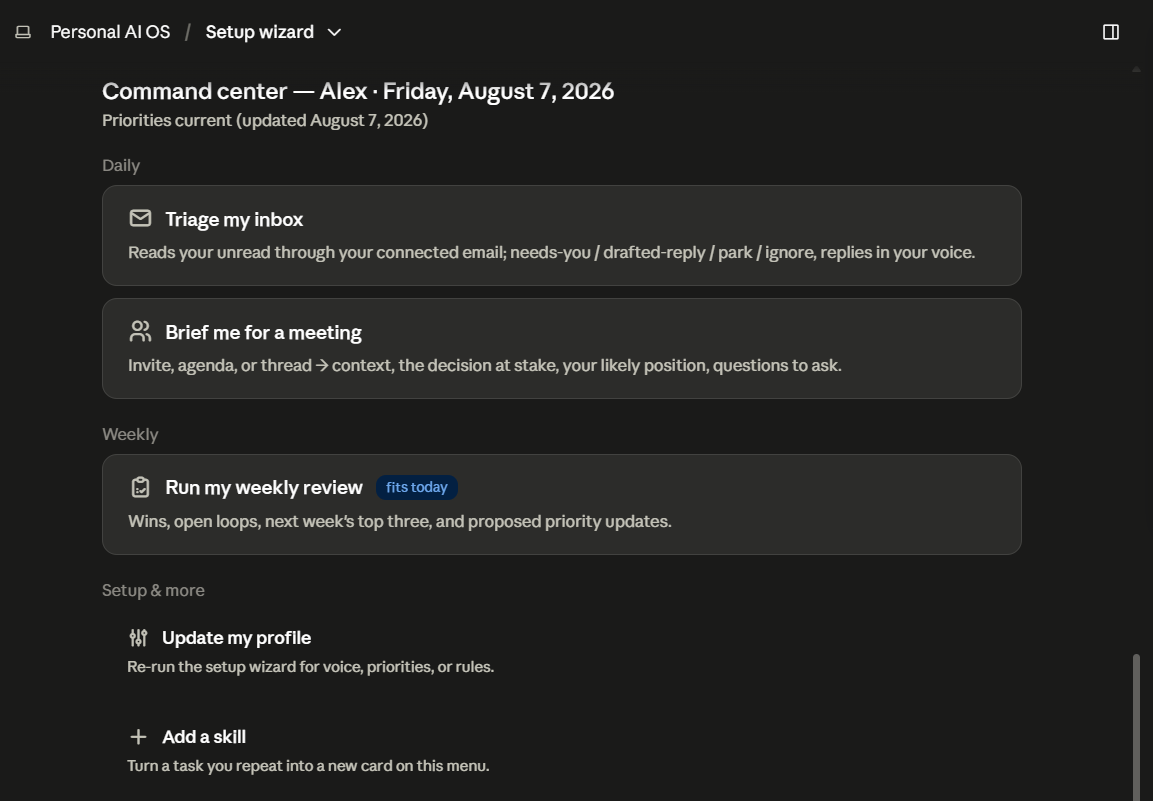
One tip worth acting on early: the more your profile says about your actual work, the more meaningful this menu becomes. The starter cards are deliberately generic — everyone gets triage, briefs, and a weekly review on day one. But the detail you gave the wizard is what turns them from labels into your labels: priorities sharpen what "Needs me" means in triage, recurring commitments make the weekly review track the right loops, and the specifics of your role are what "Add a skill" draws on when it turns a task you described into a new card. A profile that says "consultant" gets a generic cockpit; one that says "solo B2B marketing consultant, two retainer clients, monthly reporting rebuilt by hand every cycle" gets a monthly-reporting card within a week — because the system finally knows what your work is made of. If you rushed through the wizard on Quick start, this is the moment to tap Update my profile and give it the real detail.
Our own first connected triage run is worth describing, because three design details all fired at once. The skill found the Gmail connector on its own (the "check capabilities" pre-flight), pulled the last 24 hours, and told the truth about scope: "Gmail returned 50 threads and estimates ~201 total — this is the most recent 50, say the word and I'll page through the rest." The verdict was honest too — "Reply drafted: none. Nothing in these 50 is a human waiting on you — it's all automated" — no busywork invented to look useful. And because that particular inbox happened to contain something genuinely sensitive, the privacy guard opened the whole output with "Contains sensitive material — handle with care. I've kept identifiers out of this summary" — rule 3 firing visibly, unprompted, exactly as written. (Which is also why there's no screenshot of that one.)
When a draft misses your voice — it will, early — fix the profile or the skill, not the draft. Open the file from the sidebar, edit the line, done. That habit is the compounding engine from the concept post, running on files you can see.
Step 7 — Schedule the routine (2 minutes)
On the project's page, the right-hand panel has a Scheduled section ("Set up recurring tasks for this project"). Click its + → weekly, Friday afternoon → instruction: "Run the weekly review skill." Use this per-project panel, not the app's global Scheduled view — the task has to run inside the project to see your profile and skills.
Now the system starts a conversation with you once a week: wins, open loops, next week's three, and a proposed refresh of your own priorities. Two facts to know (both from Anthropic's docs, both in the concept post's honest-limits list): scheduled tasks run in the cloud — they'll fire with your laptop closed — and they can only see files in this Project, not local-only folders, which is exactly why this OS keeps everything in the Project folder.
Where this goes next
You now have the four layers running: a profile the wizard wrote and every task reads, five working skills behind a card menu, a guard on everything, and one routine that runs without you. The growth path is demand-driven: the third time you do any task manually, tap "Add a skill" and describe it. Most people plateau at 10-15 personal skills — past that, you're maintaining a library, not saving time.
Two honest boundaries, then the fence. This system prepares work; it doesn't do your judgment — the drafts-not-actions rule isn't a training wheel you remove later, it's the design. And it's personal by construction: the wizard's interview, your voice samples, your rules — none of it transfers, which is why copying someone's finished OS never works and building your own for an hour does.
If you want this pattern at professional depth for a specific job — not five skills but sixty, with the compliance guards, templates, and edge cases of your field already engineered and tested — that's exactly what our profession packs and operating-system products are: this architecture, shipped. The Real Estate AI Operating System is the fullest example, and the free audit will tell you which of your recurring tasks belong in the skills folder first — whichever way you build it.
Claude and Claude Cowork are products of Anthropic; The AI Career Lab is not affiliated with Anthropic. Cowork features referenced (Projects, connected folders, the visualizer, scheduled tasks) are accurate as of August 2026; scheduled tasks are in beta on paid plans.
See Claude set up for your job
Skip the theory — pick your profession and get the real workflows, ready-to-use prompts, and exact setup for your work.
Set up AI for your job — free, in about 2 minutes
Pick your profession and get your first working AI tool, a step-by-step guide, and a $0 plugin to take home. No credit card.
Get my free setupSee Claude set up for your job
Real workflows and ready-to-use prompts, profession by profession.
Frequently asked questions
How long does it take to set up a personal AI operating system in Claude?+
Under an hour for the working system in this guide: create a Cowork Project (2 minutes), paste the Instructions router (1 minute), install the six skill files by copy-paste (15 minutes), run the setup wizard — a single form, not a chat interrogation — to build your profile (5-10 minutes), connect your email so triage reads your real inbox (5 minutes), test it, and schedule the weekly routine. Choosing the wizard's Full setup with real writing samples noticeably improves every draft.
Do I need Claude Cowork specifically, or does this work in regular Claude?+
The full system — including the card-menu command center, the scheduled weekly routine, and files Claude writes back to your folder — needs Claude Cowork with a Project (available on paid Claude plans). Most of it degrades gracefully to claude.ai Projects: the profile and skills work as uploaded project files with the same Instructions block, but scheduled runs, the visual card menus, and Claude writing files require Cowork.
Is this the same as installing a Claude plugin or prompt pack?+
Same architecture, different scope. This guide has you hand-build a small personal system — one profile, a wizard, a command center, three work skills, one guard — so you understand every part and can extend it. Profession packs and operating-system products ship the same pattern at scale: dozens of pre-built, tested skills with compliance guardrails for a specific job. Build this first; buy depth for your profession if you want it.
What if Claude ignores my skills or profile?+
Almost always one of three causes: the Instructions block never got saved into the Project's Instructions panel (the router is what tells Claude the files exist); you're chatting outside the Project (skills only apply to tasks inside it); or a file got renamed so the router's references don't match. Re-check those three, then test with 'run the command center' — if the card menu renders, the wiring works.
Related Guides
How to Use Claude at Work: A Guide for Non-Engineers (September 2026)
A practical guide for consultants, analysts, assistants, and other non-engineering professionals: how to use Claude for documents (Claude Docs), slides, Excel, email and scheduling, and a 'second brain' built from projects, memory, and skills. Updated for the September 2026 merge of chat and Cowork.
The $10 AI Stack: Can Kimi K3 + DeepSeek Beat a $200 Plan?
The viral '$10 a month' Kimi K3 + DeepSeek stack, priced and limit-checked: what it really costs, who can actually buy it, what it does well for analysts, and when a $200 plan is still worth it.
What Is Grok 4.7, and Should Professionals Switch from 4.6? (September 2026)
Grok 4.7 launched September 21, 2026 — same API price as 4.6, 40% more parameters, and a new fast variant in Cursor. Independent benchmarks show a widening gap to Claude and GPT-6. Here is what changed, what didn't, and whether it moves the needle for professionals.